Installation
Computer and Software Requirements
The WAM Toolbar will run on any computer with Windows version 10 or 11, and requires ESRI ArcGIS 10.8.1 with the Spatial Analyst extension. Note that if you need to update ArcGIS, or uninstall/reinstall, make sure you uninstall the WAM Toolbar first. If this is not done, you may end up with a non-functional WAM Toolbar!
Note on GIS data resolution, computer hardware limitations and model run times:
Recent improvements in publicly maintained GIS datasets have allowed for more detailed spatial modeling of watersheds. These improvements, of both the relational attribute information and spatial accuracy and resolution of datasets have allowed for a more realistic representation of the processes within a watershed. Thus, because the GIS dataset inputs that describe the different characteristics that are important for watershed modeling such as land use, soils and hydrography are becoming more detailed, it has resulted in a more accurate representation of the simulated interaction of these inputs and a resulting better understanding of their inter-relations and possible accuracy improvements of the model output. The WAM Technical Manual contains a section on typical field cell size, which can be useful in determining the model cell size.
It is recommended that WAM be run on a cell size of 1 hectare. This cell size allows for most field scale features to individually influence the model outputs, while allowing for faster model run-times. Smaller cell sizes can and have been used, but it can dramatically increase memory and time requirements. The relationship of cell size and run times is directly dependent on the overall size of the study area.
Enable Extensions and Toolbar Installation
The WAM Toolbar is a GIS application which runs as an extension to ESRI ArcMap and not a stand-alone program. It thus requires ESRI ArcGIS (version 10.8.1) with the Spatial Analyst extension be pre-installed and running on your computer as well as basic knowledge to operate that program. The WAM interface is accessed and controlled from two toolbars, which will have to be added to ArcMap.
To install WAM:
-
Make sure that ArcMap is installed but closed, otherwise you will receive error messages;
-
Double click on the “Setup.exe” file for the WAM Installer, or right-click on the WAM Installer .msi file and select "Install". This will lead you through the setup process.
-
Follow the on-screen instructions. Install WAM into the default location if possible.
-
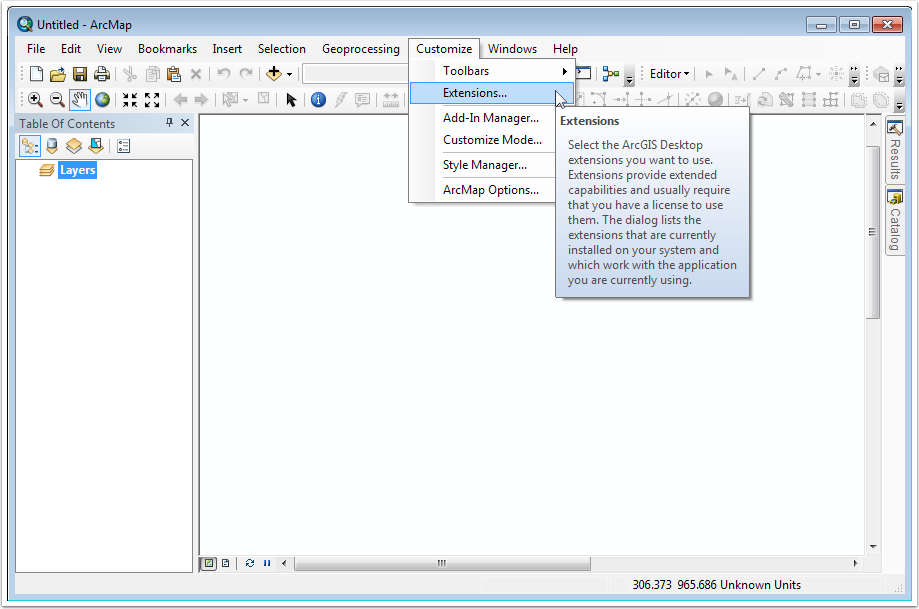
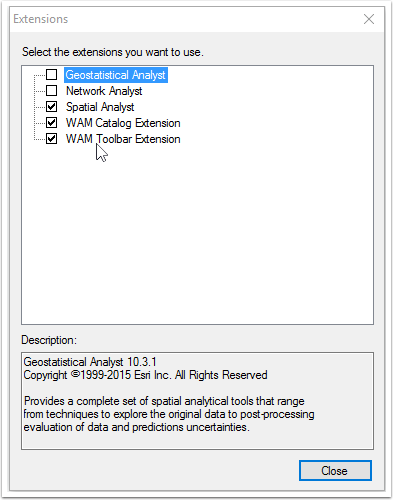
WAM requires two extensions to be enabled, the WAM Toolbar Extension and the WAM Catalog Extension. From the ArcMap Customize menu, select "Extensions..." to open the ArcMap extensions window.
5. Enable the two WAM extensions. Also ensure that the ESRI Spatial Analyst extension is enabled.
6. Reopen ArcMap, Go to View -> Toolbars menu and check mark the WAM Toolbar.
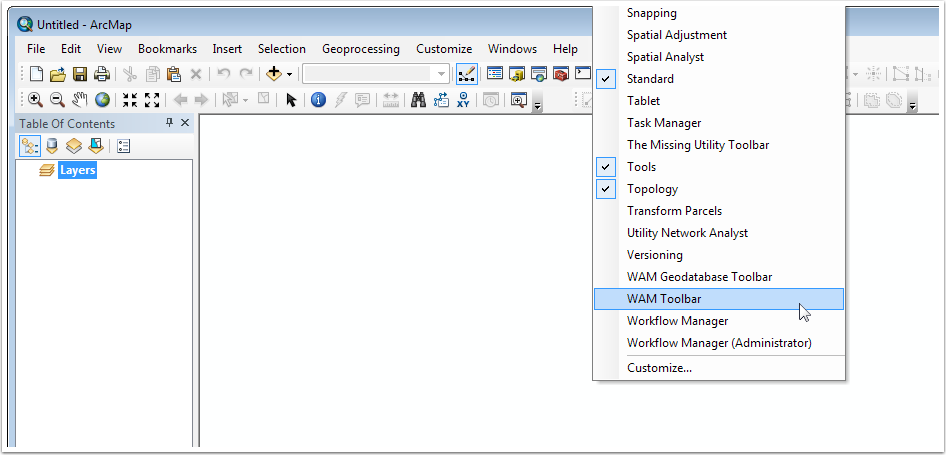
The WAM Toolbar will appear. The floating toolbar can be docked. The tools are arranged in the intended work flow procedure, from left to right. Tool tips are available by hovering over a tool button.

7. Repeat step 4 and add the “Reach Analysis Toolbar”.

8. Note that if/when ArcGIS is uninstalled or updated to a new version, it is critical to uninstall the WAM Toolbar FIRST!
It is not necessary to register or activate the WAM extension for ESRI ArcGIS. Now you are ready to start working.