Projects
To Create a New Project
-
Right-click on the folder you want to create the projects in,
-
Select "Watershed Assessment Model",
-
Select "Create WAM Project...".
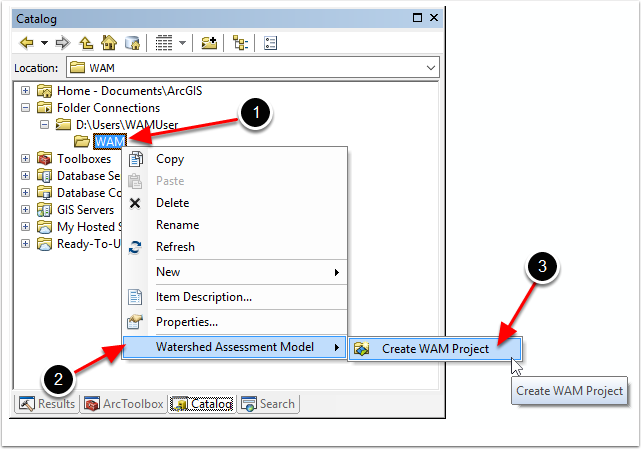
A "+" will appear by the selected folder, indicating that a new folder (the new WAM project folder) has been created inside it. Expanding this folder shows the new folder as shown below:
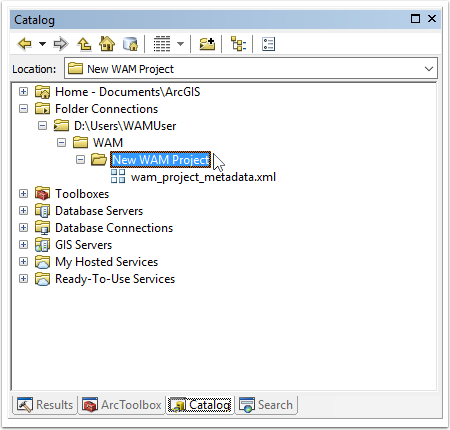
The new folder is named "New WAM Project" and can be renamed appropriately. To rename a folder, select it and press the function key "F2", or click on the name when it is highlighted. Here, we will simply name it "WAM_Project".
Please note that spaces in names, while allowed by Windows, may cause issues when using ArcMap geoprocessing tools. It is a better idea to eliminate spaces entirely, or use underscores (" _ ") to separate words.
Note the file contained with the new project named "wam_project_metadata.xml". This contains some basic metadata information, and also shows via its icon that the folder contains a WAM project. After renaming the project (here, named "WAM_Project"), a WAM sub-project can be added to the project, or a new WAM scenario can be added to the project.