Scenarios
Once a WAM project has been created or copied/pasted from another location, the user must either add an existing scenario or create a new one. If the project was copied from elsewhere and had existing scenarios, before doing any edits the user will probably want to make a copy of a scenario so they do not overwrite previous work. If the project does not contain a scenario, which will be the case when using WAM for the first time, the user can choose to create a new scenario, or to copy a scenario from another location.
Creating a New Scenario
If you are starting a new project, or would like to just create a new scenario from scratch in an existing project (Figure 2.8):
-
Right-click on the project folder you want to create the scenario in,
-
Select "Watershed Assessment Model",
-
Select "Create WAM Scenario...".
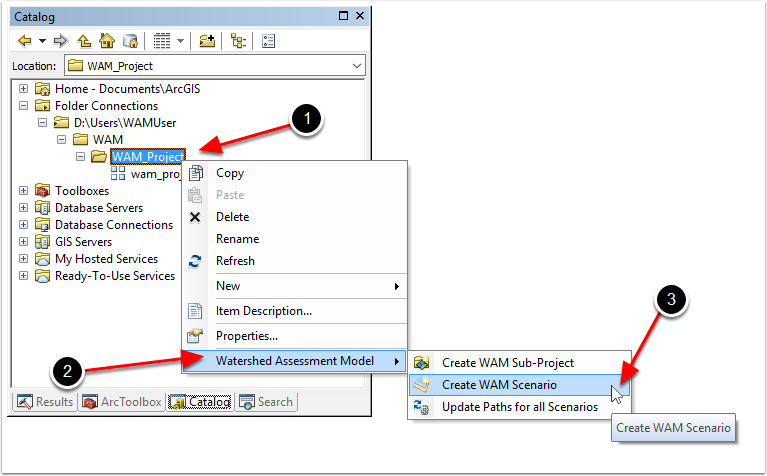
This will create a new WAM scenario with the default name "New WAM Scenario". As with a new WAM project, it is suggested to change the name so that it does not contain any spaces or other non-alphanumeric characters. Once the scenario has been created, click on the "+" by the folder to open it up and see the contents as shown below
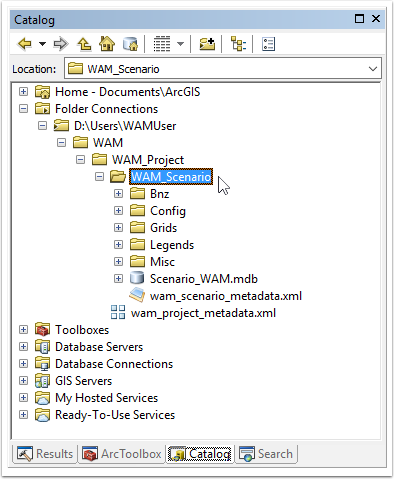
There are five subfolders generated by the "Create WAM Scenario" command as well as a default WAM database to hold tabular data for WAM. The directory layout for WAM is discussed in detail in the section Folder Structure and File Storage.