Sub-Basin Boundaries
As discussed in the previous section, the user needs to define the sub-basin boundaries within the sub-basin feature class. The sub-basin dataset is a polygon feature class that has one required attribute (in addition to the automatically generated OBJECTID, SHAPE, SHAPE_Length, and SHAPE_Area attributes, which are not shown in the tables listed throughout this documentation): a long integer attribute named "Sbas_ID". This attribute is created when the WAM GIS Database is created, although the feature class is empty. In addition, there may be three additional fields added, as shown below:
| Attribute | Alias | Data Type |
|---|---|---|
| Sbas_ID | Sub-Basin ID | Long Integer |
| IrrigationSourceID | Irrigation Source ID | Long Integer |
| UtilzoneID | Utility Zone ID | Long Integer |
| BasinName | Basin Name | String |
The only one of these attributes that needs to be parameterized is the Sbas_ID, which requires an integer value. Values do not need to be consecutive, but each sub-basin feature must have a distinct value.
There should be no gaps or overlaps between sub-basin features. Adding a topology to the map or geodatabase will be very helpful in finding gaps and/or overlaps. Otherwise, the user must take care to ensure that all feature boundaries coincide. Once this is complete, the sub-basin feature class should be the first feature class imported into the WAM GIS database.
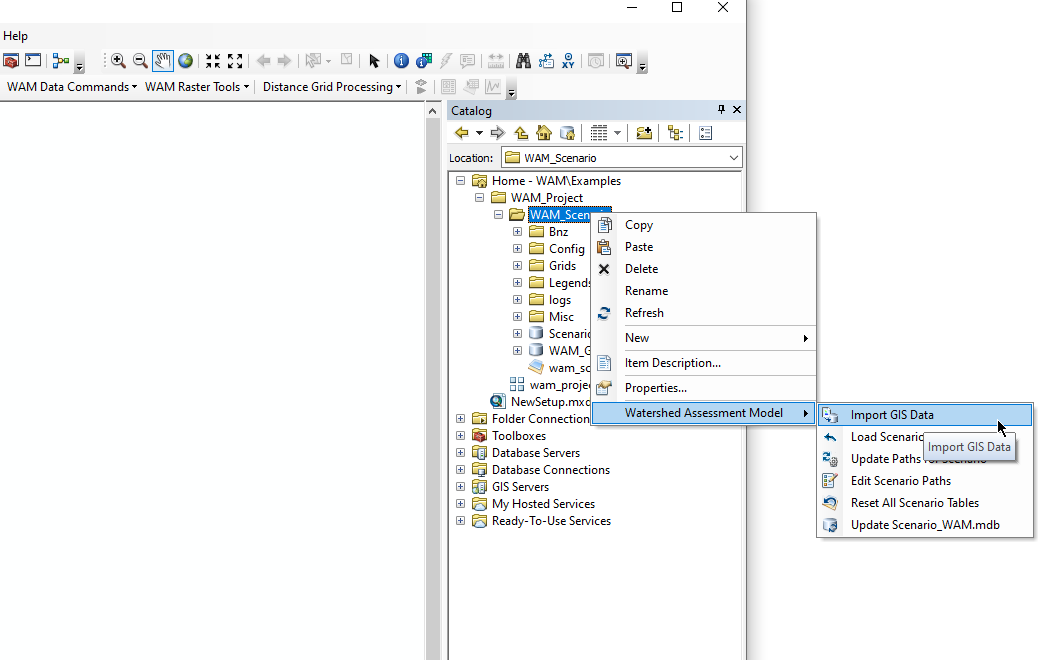
To import a feature class, in the ArcMap Catalog window, right click on the target scenario directory, and under "Watershed Assessment Model" sub-menu, select "Import GIS Data"
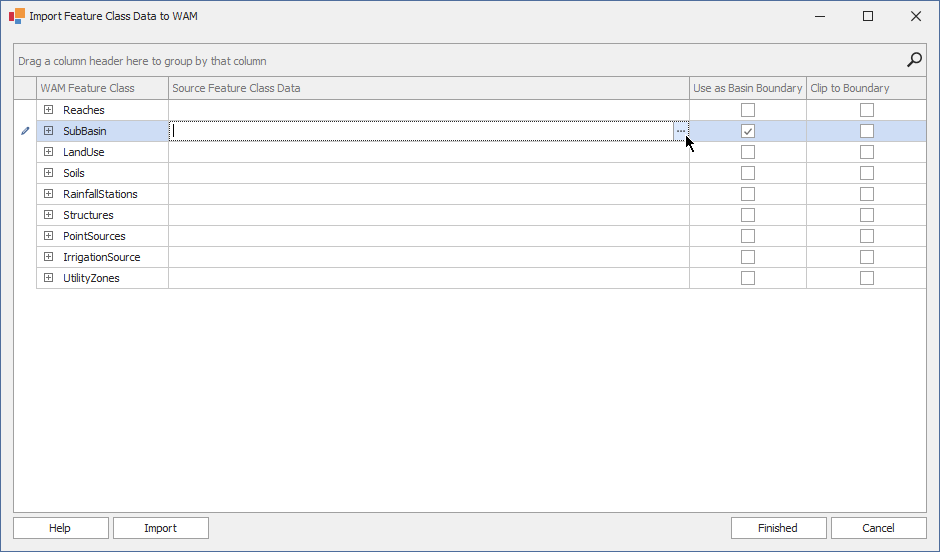
The GIS Import window will open. This has a series of rows for each feature classes. In the "Source Feature Class Data" column, there is a button (with three dots) at the right-hand side of the column. Clicking on that will open a file browser that will allow the user to select the data to import.
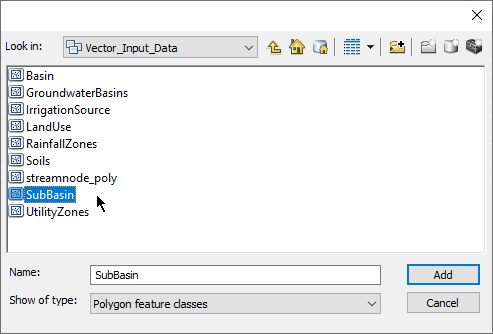
When the window opens, browse to the location where your data is located and select the feature class where the sub-basin features are located, in this case "SubBasin", and click on the "Add" button.
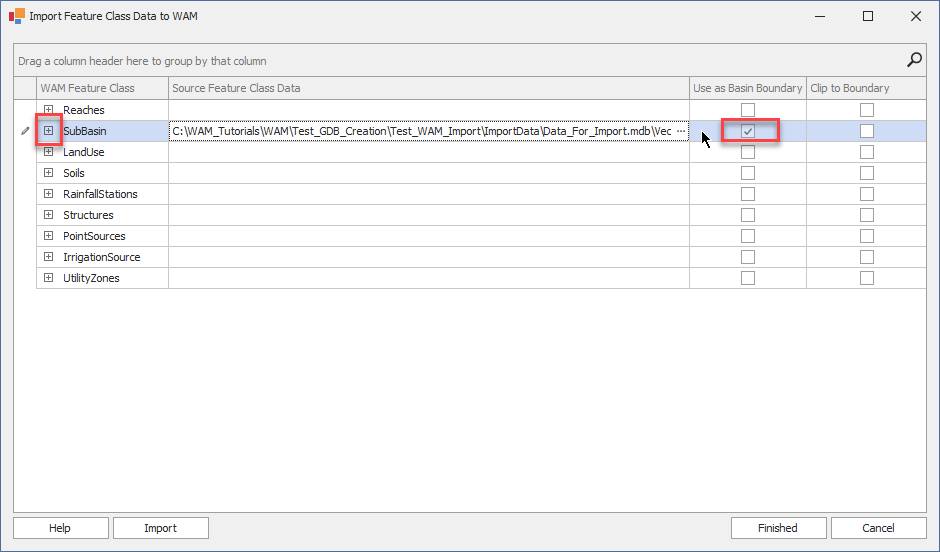
The path to the dataset you are importing (the source feature class) will then appear in the "Source Feature Class Data". Make sure that the checkbox in the "Use as Basin Boundary" shows a check, and the "Clip to Boundary" is un-checked. During import, this will first import all the sub-basin polygons into the currently empty SubBasin feature class, and the create a second feature class representing the watershed boundary by merging all the polygons in ths sub-basin feature class.
Now, clicking on the "+" to the left of the "SubBasin" at the far left of the row (indicated by the red outline) will open up the attributer mapper.
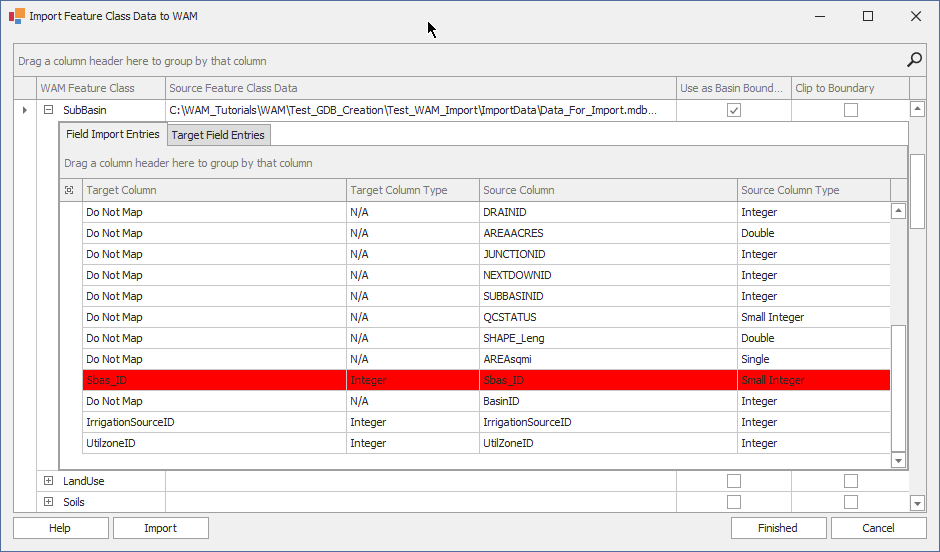
When the attribute mapper opens, it shows a list of the attributes in the target feature class and the source feature class. Attributes that share the same name will be imported unless "Do Not Map" is selected. Two attributes of note are 1) the "SHAPE" attribute (of "Geometry" type), which should automatically be mapped and always copied and 2) the "OBJECTID" (or "OBJECTID_1" or "FID") of type "OID" which should never be mapped as this attribute is automatically generated for each feature by ArcMap. For attributes in the source feature class that do not have a corresponding attribute in the target feature class the default will be "Do Not Map". Here, the Sbas_ID attribute in the target feature class matches the Sbas_ID attribute in the source. However, the red highlight indicates that the attribute types do not match. Examination of the types shows that the target attribute is a standard integer while the source attribute is a "small integer". In this case the mapping will still work, since a small integer can be automatically converted to a larger integer type. However, in some circumstances a source attribute may, for example, be a string type and the target attribute will be a floating point type. In this case, there is no automatic conversion so the import will fail.
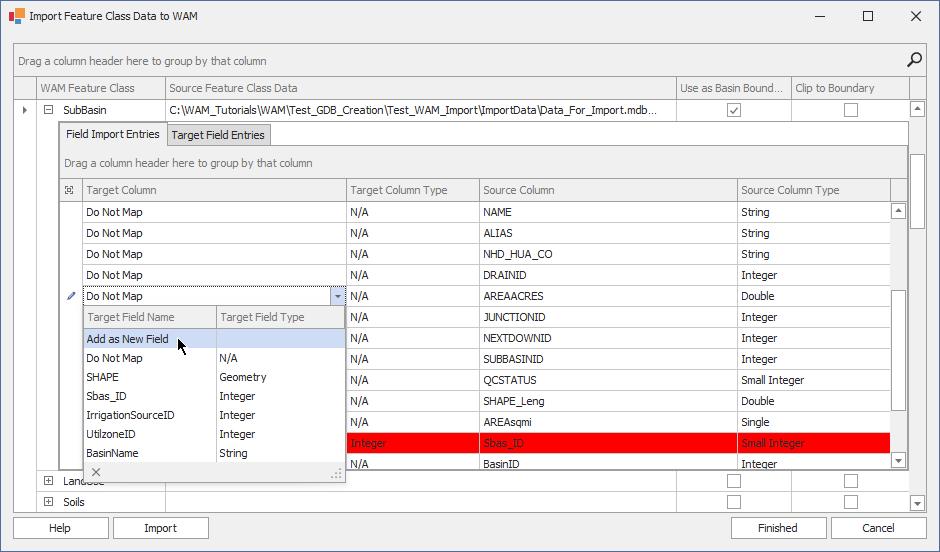
It is common that there are attributes in the source feature class that do not exist in the target dataset. Here, the attribute "AREAACRES" (the polygon acreage) is not present in the target. Clicking on the triangle at the left side of the "Do Not Map" text will open a drop-down menu where the user can select "Add as New Field" which will cause the attribute to be added to the target and the values copied.
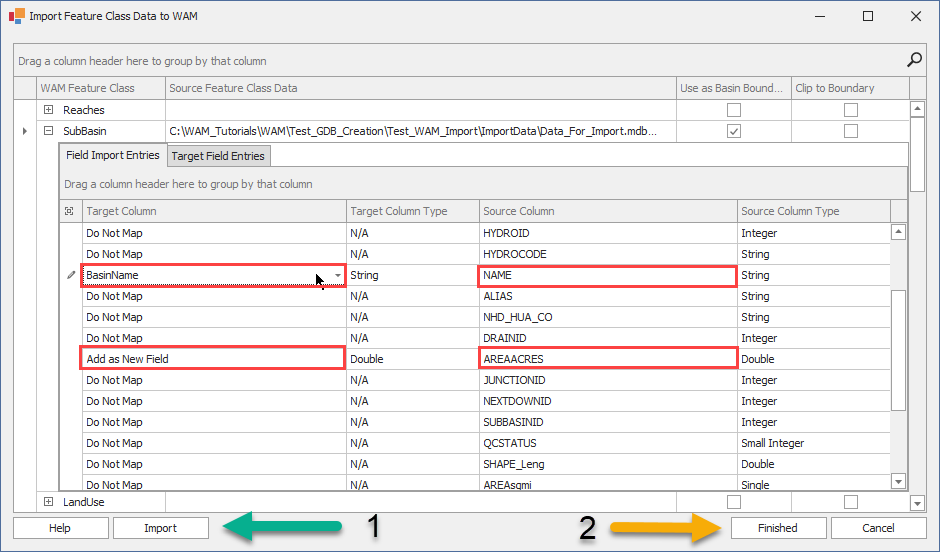
Note that the user can also select a field that already exists in the target feature class. This option is used when there are simliar attributes in both source and target feature classes that the user wants to copy over, but the names to not match. Here, for example, the target feature class already has an attribute "BasinName" and the source has an attribute named "Name" (both of string type) that has the same information (names for each sub-basin). The user would select this field to copy data over as shown below. When ready, click on the "Import" button to import the data. For now, we will not import more data so click on the "Finished" button.
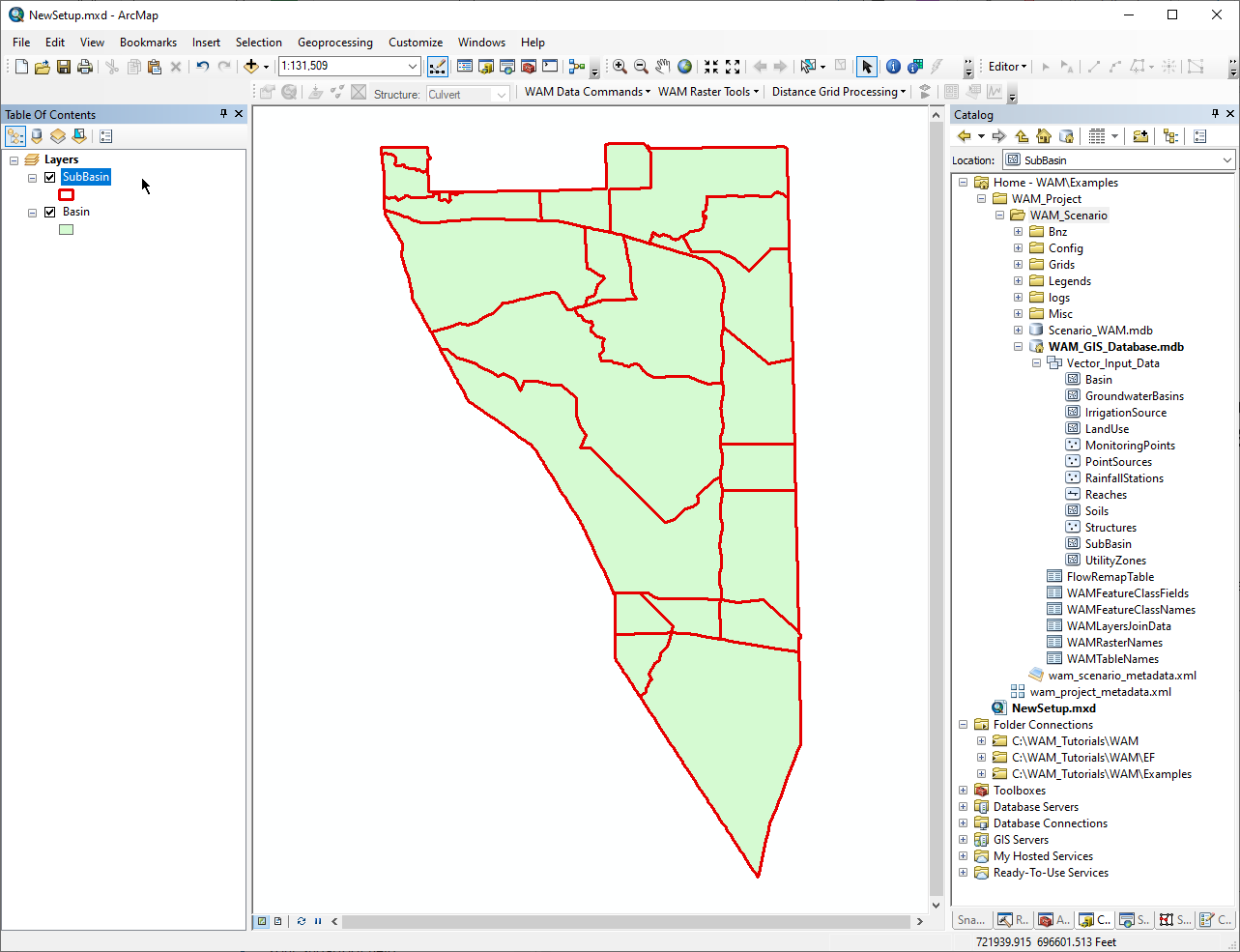
To check if the sub-basin feature class was imported correctly and the basin boundary was created, drag the "Basin" feature class into the ArcMap Table of Contents and make sure there is only one polygon and it is correct, and then add the SubBasin feature class over the top of the basin to make sure all the sub-basin features were imported correctly.